Code & data
Shopify product CSV import errors: check the file before importing again
Diagnose headers, quoting, variants and image links in a Shopify product CSV, then review changes and test a small import deliberately.
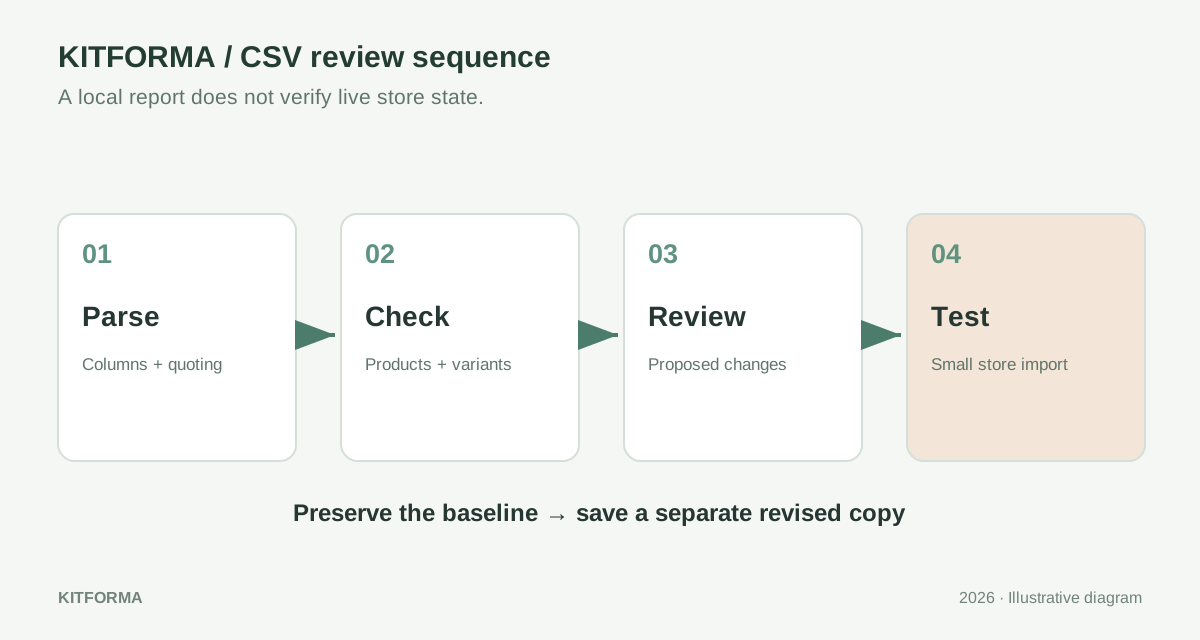
Keep a baseline and classify the error
Save the exact file that failed and a current product export before editing. Record the import error and the row or product it names. A failed attempt, a successful import with unexpected values and an image that does not appear are different problems; changing everything at once makes the cause harder to identify.
Shopify imports can update existing products when matching handles and overwrite options are involved. Treat an import as a store change, not a harmless file preview. Decide whether you are creating products or updating selected fields, and read the confirmation screen accordingly. Do not use your only catalog copy as the working file.
Use a three-part diagnosis: first, can the CSV be parsed into the intended columns; second, do the product and variant values fit the selected Shopify format; third, do external dependencies such as hosted images actually work? A local checker can assist with the first two categories, but cannot prove the current state of a store or its remote resources.
Check the template version before renaming headers
Shopify’s current product CSV reference uses headings such as URL handle, Description, SKU and Price. Older exports may use Handle, Body (HTML), Variant SKU and Variant Price. Shopify documents backward compatibility for older column names. Compare with the current reference or a fresh export rather than replacing headings from an old blog post.
Look for leading spaces, repeated headings, a missing delimiter or a header row pasted into the middle of the data. Preserve columns whose purpose you do not yet understand. A custom metafield or market-specific price column can carry real data even if it is unfamiliar. A simple checker should not silently discard it to make the file look tidy.
In KitForma’s Shopify CSV Fixer, read the supported checks and review the reported rows before accepting any proposed repair. Reconcile the result with your selected template. A clean report covers only the checks implemented by the tool; it does not mean that every Shopify feature, metafield or inventory workflow has been validated.
Current reference → familiar older heading
URL handle        → Handle
Description       → Body (HTML)
SKU               → Variant SKU
Price             → Variant Price

Check the chosen schema before changing a heading.Separate quoting and encoding from product data
Shopify expects a UTF-8 CSV with comma-separated columns. A spreadsheet that looks correct can export with a different separator or encoding. Reopen the saved file in a text editor or parser and check the actual output. Accented product names becoming garbled are a useful signal to investigate encoding before changing the names themselves.
A comma inside one field needs CSV quoting, and a literal double quote inside a quoted field is doubled. The example below is a parsing exercise, not a complete product-import template. Do not fix an invalid row by replacing every comma: that can destroy tags, descriptions and prices. Smart quote characters used as delimiters are also different from the straight quote used by CSV.
Quoted descriptions can contain line breaks, so the line number in a text editor may not match a parsed record number. Inspect the named record and its neighbors. KitForma’s generic CSV-to-JSON tool can help inspect supported plain CSV structure, but converting a file back and forth is not a substitute for preserving the Shopify schema and exact identifiers.
Title,Tags
"Mug, blue","ceramic,gift"
"Print titled ""Morning""",wall-art

Each example row has two fields, despite its internal punctuation.
IETF RFC 4180: CSV quoting and records ↗Shopify: opening, editing and encoding CSV files ↗Shopify: common product import errors ↗
Review complete variant groups
Repeated product handles are not automatically duplicates: variant and image rows can belong to the same product. Compare complete option combinations instead of deleting every repeated handle. Two rows for one shirt can legitimately share a handle while representing different sizes. Two rows with the same size and color need closer inspection.
Shopify warns that certain variant updates need the option columns; omitting Option1 name and Option1 value in that situation can replace existing variants with a default variant. Keep related columns together. Never remove option information merely because it looks repetitive or because a generic spreadsheet cleanup suggests deduplication.
For an illustrative shirt, Small / Blue and Medium / Blue are distinct combinations. If Small / Blue appears twice, decide from the original catalog which row is correct. Do not manufacture a new option value just to silence an error. Preserve leading zeros in SKUs and barcodes as text in your spreadsheet so the editor does not silently reinterpret them.
Same product handle: cotton-shirt
Small / Blue  → SHIRT-001
Medium / Blue → SHIRT-002
Small / Blue  → investigate this repeated combination
Shopify: current product CSV columns and dependencies ↗Shopify: common product import errors ↗
Check images and values at their source
An image URL must lead to an image that Shopify can access. A file path on your laptop, a login-protected sharing page or a broken link is not a working product image source. Open a questionable URL separately and check that it returns the intended image rather than a web page. A syntactically valid URL alone cannot establish accessibility.
For a price or inventory error, inspect the relevant cell instead of converting the whole column blindly. Currency symbols, explanatory text and locale-specific separators may have been copied into a numeric field. Compare your intended value with the current column definition. Do not guess a missing selling price, fulfillment choice or stock quantity just to produce an importable file.
Review a small change before importing the catalog
Export the revised file under a new name. Compare its headers, product groups, row count and changed values with the baseline. Text Diff can show textual changes; remember that multiline CSV fields complicate line-by-line interpretation. Check the parsed records as well when a structural repair was needed.
Prepare a small, complete product group for the first controlled import and verify the selected overwrite behavior. Review product details, variant choices, images and status in Shopify afterward. Only extend the import when that result matches your intention. KitForma processes its supported local checks in your browser; it does not log into the store, import products or guarantee that Shopify will accept every row.
- Preserve the failed file and a baseline export.
- Fix one diagnosed issue and save a separate copy.
- Review changed cells and complete product groups.
- Test a small import with deliberate store settings.
- Inspect the result before using the broader file.
KITFORMA
Put it into practice
No account needed. Open an article, then try the matching tool.
Further reading
Sources last reviewed:
How to use this guide
Published by KitForma, maintained by Fatih Erkan. The linked references explain the relevant formats and definitions. Examples use sample inputs; they do not establish a speed, quality or compatibility guarantee for your files. Check the tool’s stated limits and inspect your downloaded result.
Questions & experiences
Share what worked, ask a specific question, or suggest a correction. Never include passwords, private files or personal document details.
Loading community…